
This year, the move towards online education has seen a massive acceleration as more schools than ever before have turned to distance learning. With children logging on for classes rather than walking into them, there are new challenges to overcome in order to provide online safety within education.
Setting suitable strategies in place can mitigate online threats, offering the benefits of distance learning without the concern for children’s safety, the school’s information, and any possible data vulnerabilities.
The challenges of online safety in education
Looking briefly at some of the challenges that are involved in online learning, the following needs to be considered:
- Cyberbullying,
- Cyber predators,
- Private information leaks,
- Phishing and scams, and
- Malware downloads.
Tips for teaching and practising online safety
In this blog, we’ll highlight the four main points to ensure your students are practising online safety as much as possible while online or using school-owned devices.
1. Have web-filtering tech in place
Web-filtering is a handy tool which limits what can and can’t be found online. In education, it’s not only a powerful method to make sure students avoid inappropriate content, but it’s also helpful to diminish distractions so that students stay on track with their tasks as much as possible.
The software is a fantastic way to restrict certain content from showing up from student’s searches without blanket-banning the internet. Mobile Guardian’s web-filtering for education offers a tailored solution for search safety, which is dynamic in with permissions and enables the management of school-owned devices.
Restrictions can be implemented by:
- Website categories,
- Keywords (pre-defined and defined by the school),
- URLs, and
- YouTube Channel.
Curious about how web-filtering works? Sign up for a free 14-day trial!
2. Teach students about cybersecurity in the curriculum
As such a major component in student’s education, teaching the safe use of the online space is important. Discussing digital dangers means that children will have the knowledge to step safely into internet independence. With the right information for safety in browsing, it’s less likely that they will end up falling prey to malicious content or entities when they are on their own devices.
Google launched Be Internet Awesome to teach and promote safe internet usage to children. The website provides an interactive and engaging way for students to learn about online safety and possible threats.
This helps address challenges such as scammers looking to steal information and money, malware and hacking software which can be installed through suspicious emails and links. Additionally, the website shows students how to deal with cyberbullying and aggressive keyboard warriors, and cybersafety.
Schools may develop their own Acceptable Usage Policy to help students appreciate and understand what is considered acceptable for device and internet usage.
3. Monitor student’s tasks and activity
Monitoring activity is not about taking student’s privacy away, it’s about ensuring that they are not straying to dangerous territory and are remaining focused during class. Live Screen Views and Tab Control mean there’s little risk of students stumbling across - and staying on - inappropriate or suspicious sites.
These features provide teachers with a window of clarity into how students are engaging with the lesson. If they are distracted, teachers are able to intervene directly and close the distracting tab.
4. Draw reports of device activity
Whether in the classroom or teaching remotely, Teachers have a knack for picking up when students are up to trouble. However, even the best can miss a spot of trouble here and there. Mobile Guardian created Device usage reports, to provide educators with insight into student activity during class.
Teachers and IT Administrators are able to draw reports that illustrate how time was spent during a lesson. These reports display the amount of time spent by students on which apps and websites.
These reports can be used to identify distracted students but, even more importantly, educators may correlate how successful students are spending their time, and seek to emulate this behaviour through classes.
Web Filtering in Online Safety
Not only do monitoring tools to ensure safety for students online, but they also alleviate distraction and redirection is simple as you clicking a button.
Mobile Guardian ensures that it doesn’t have to be a massive process to monitor whether students are focusing on the right thing and avoiding the wrong. The cloud-based software works seamlessly with your school’s system, making the switch from insecure to safety simple.
Add security to your school’s systems - trial Mobile Guardian for free.
Onwards,
Nicholas Norman
Team Mobile Guardian
aWe’re excited to announce that Mobile Guardian's September 2020 Release is live.
It might feel like the world has altogether stopped turning these last few months, but here at Mobile Guardian, we’ve been working harder than ever to create value for you, our user.
Besides our September release, we’ve recently launched our $1 million COVID-19 software grant, our referral program and took home two new product awards for remote learning and technology from Spaces4Learning.
Naturally, the shifting education landscape has been at the forefront of our minds and this release focuses on solving some of the challenges that teachers face when it comes to remote and blended learning.
Our Standout 2.1.3 Release Features
Modes
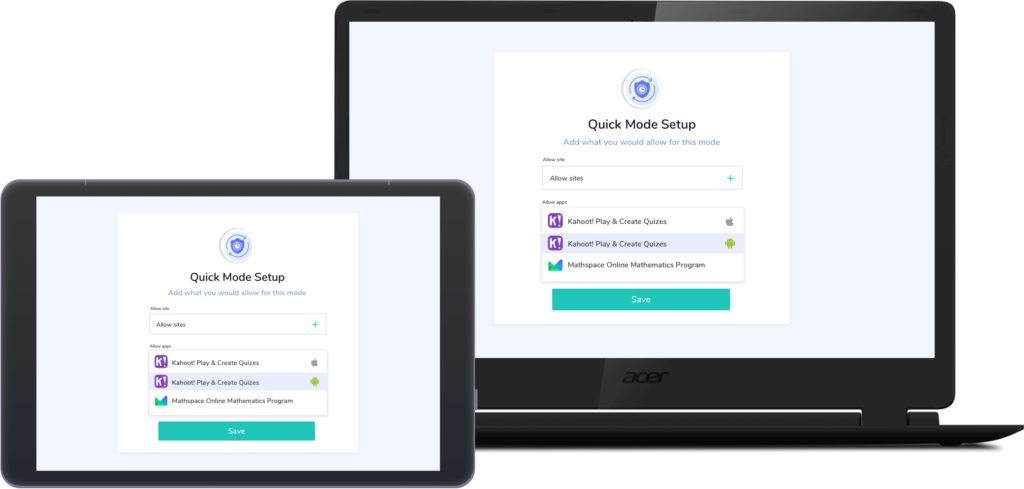
Perfect for assessment, Modes will allow teachers to create a testing or focused learning environments on Android, ChromeOS and iOS devices that students won’t be able to exit. Set exactly which apps, content and websites students may access.
Application Usage Report
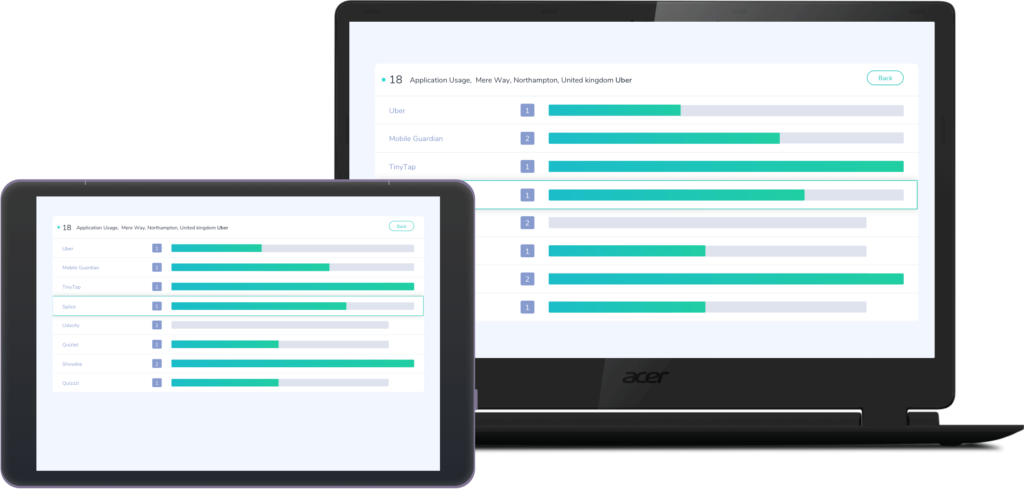
The Application Usage Report will help schools with Chromebooks and Android devices understand which applications students use the most. IT Administrators can choose to build their own reports or use pre-defined reports, which they may export for clear insight into student behaviour.
In-App Browsing Activity
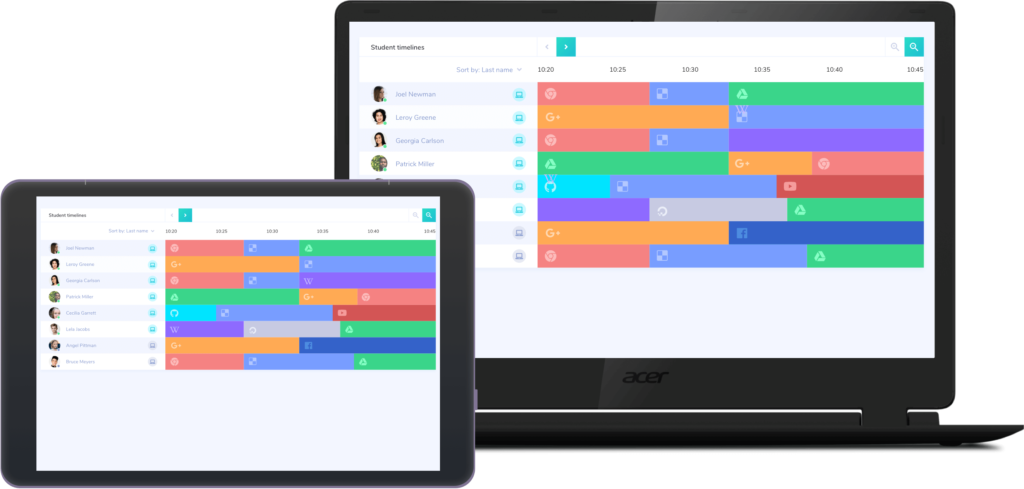
In-App Browsing Activity, a star feature of our Chromebook Classroom Manager, is now available for iOS & Android. Providing a deeper layer of insights into the browsing behaviour of students within the Mobile Guardian App.
Additional new features:
- Teachers | Start of Class URL A popular feature of our Chromebook Classroom Manager is now available for Android & iOS. Teachers will be able to send students to a specific URL or landing page at the start of a class.
- School | User Invites Schools have the ability to send or resend an invitation to any of their users on the Mobile Guardian dashboard.
- Chromebook | Roster Sync District Administrators can now sync rosters based on active teachers at each school, at the district level. Allowing District Administrators to manage roster synchronisation per teacher with ease.
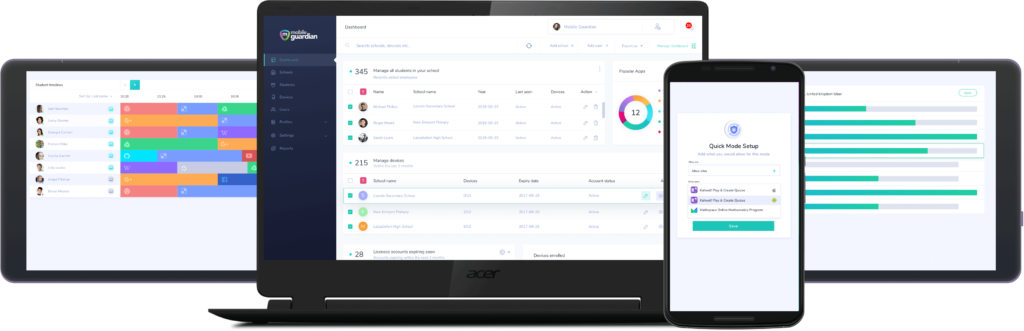
- Entire Interface | User Experience Boost Intuitive, teacher-approved, enhancements to the User Experience that make our solution quick to grasp and even more easy-to-use.
Improvements:
- School | iOSsome text
- Lockdown enrolment to specified channels
- Android | Classroom | Class Start Landing Pagesome text
- Teachers will be able to send students on Android devices to a specific URL when they join at the start of a class.
- Android | My catalogue contentsome text
- In an active class when a teacher pushes content, the device receives a content notification and it will automatically open up the content
- Android | Teacher | Class Startsome text
- When a student joins a class on an Android device, they will be automatically redirected to the Mobile Guardian browser so that they are ready to participate within this class.
- iOS | Teacher | Class Startsome text
- When a student joins a class on an iOS device, they will be automatically redirected to the Mobile Guardian browser so that they are ready to participate within this class.
- iOS | Classroom | Class Start Landing Pagesome text
- Teachers will be able to send students on iOS devices to a specific URL, when they join at the start of a class.
- Teacher | Screenshare | Failed device connectionssome text
- Your Classroom Management dashboard will now display icons to indicate if a device is still connecting to the class, or if the connection to a device has been lost.
- If no connection is made after a certain time, the dashboard will attempt to start a low-resolution, fallback mechanism on the device
- If the fallback mechanism has been activated the video feed (or icons) will be replaced by screenshot images of the device screen, updated every 2-3 seconds
- Teacher | Active Class UXsome text
- Changes to the User Experience that make our solution quick to grasp and even more easy-to-use for teachers.
Coming Soon…
Google Drive Integration
[caption id="" align="aligncenter" width="800"]

Mobile Guardian Google Drive Integration[/caption] Google Drive Integration will allow teachers to quickly and easily share documents stored within Google Drive to devices in their class.
If you'd like to see these features in action and discover how Mobile Guardian can empower teachers and safeguard students in your school, fill out our demo booking form and we’ll be in touch. Alternatively, test it out for yourself and sign up for a free, 14-day trial.
We're proud to have Mobile Guardian's 2020 September release live and in the wild, and know you'll enjoy all these new features!
Onwards!
The Mobile Guardian Team





.png "X(Twitter)")